MaxIm DL Alarms
Here is a simple way to get a bit of sleep while you are imaging. It uses the MaxIm DL alarm feature to wake you up using your mobile phone when there is a guiding problem. In my situation, I use this to wake me up in the bedroom if there is a problem out in the observatory.
1. Download and install Skype. You will need to sign up for an account in case you don't already have one. When you log in to Skype for the first time, make sure you check the box "Sign me in when Skype Starts"
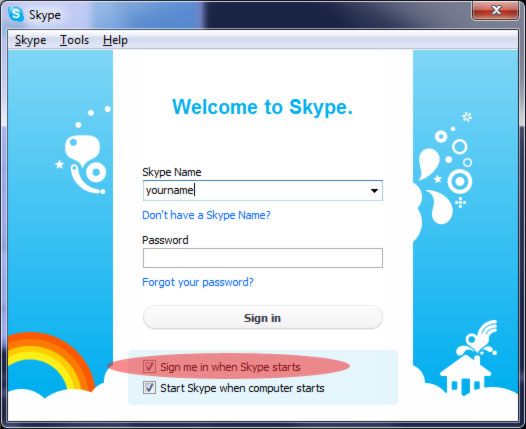
Skype needs to be running and logged in for the script to work, and you must remember to never to click "Sign out" from Skype. In previous versions of Skype it wasn't necessary for Skype to be running, but something has changed recently. To be safe, you should check both boxes - "Sign me in when Skype starts" and "Start Skype when computer starts".
2. Create a small script file using notepad as follows. This version will work for 64 bit Windows 7. If you are using a different version of Windows, you might need to modify the paths
You will also need to insert your mobile phone number in the spot where I put +610499999999.
      Dim WSHShell

      Set WSHShell = WScript.CreateObject("WScript.Shell") ' open normal and do not wait

      WSHShell.Run chr(34) & "C:\Program Files (x86)\Skype\Phone\skype.exe" & chr(34) & " /callto:+610499999999", 1, false

      Set WSHShell = Nothing

      WScript.Quit(0)
3. Save the above script onto your computer somewhere and call it 'call.vbs'
You can test the script at this stage by double clicking on it. It should start up Skype and call your phone.
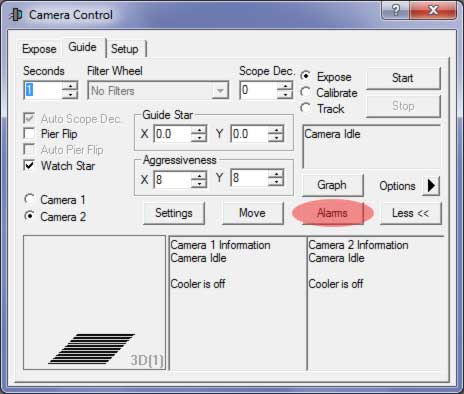
4. In MaxIm DL, go to the guide Camera control window and select the 'Alarms' button.
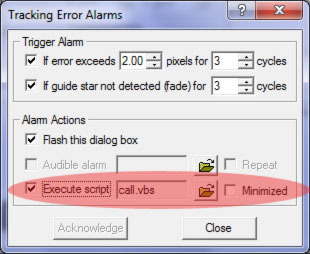
5. On the Tracking Error Alarms window, make sure you have the first 2 "Trigger Alarm" check boxes checked and review the settings. Then use the folder browser icon where it says "Execute script" to browse and find the script you created in steps 2 and 3.
6. That's it! You can test everything is working properly with the simulator camera that is supplied with MaxIm DL . Ensure you set a reasonably small Alarm trigger (say for example 0.1 pixels) and this should trigger some guiding alarms and the script should call your phone.
Set a nice loud ring tone on your phone and sleep well. The good thing about the MaxIm DL alarm feature is that if the guide star is within the alarm threshold, then you know that the system is in reasonably good shape. For sure the events listed below have not happened:
- clouds

- the sun came up!
- you tracked all the way down to the horizon
- the guide scope got covered in dew
- the guide star was lost in a nearby tree
- the guide star was lost due to focus drifting
- the guide star was lost due to a cable snag
- the guide star was lost due to excessive wind
- the dome did not follow the scope
- rain
- you tracked into the Pier
- the mount went too far past the meridian
(I have placed a tick next to the ones that I have already experienced and this script has captured)
There are a lot of other things that can go wrong, but these are are probably the ones that will keep you awake at night if you don't have a reliable alarm system.